Sketching & Drawing
A contemporary fashion project where branding meets digital clarity. We created a bold yet minimal identity system and extended it into a clean, immersive online experience. The result is a brand that feels timeless and ready for the future.
2025
Branding, Digital
Group Drawing (Week 1-8)
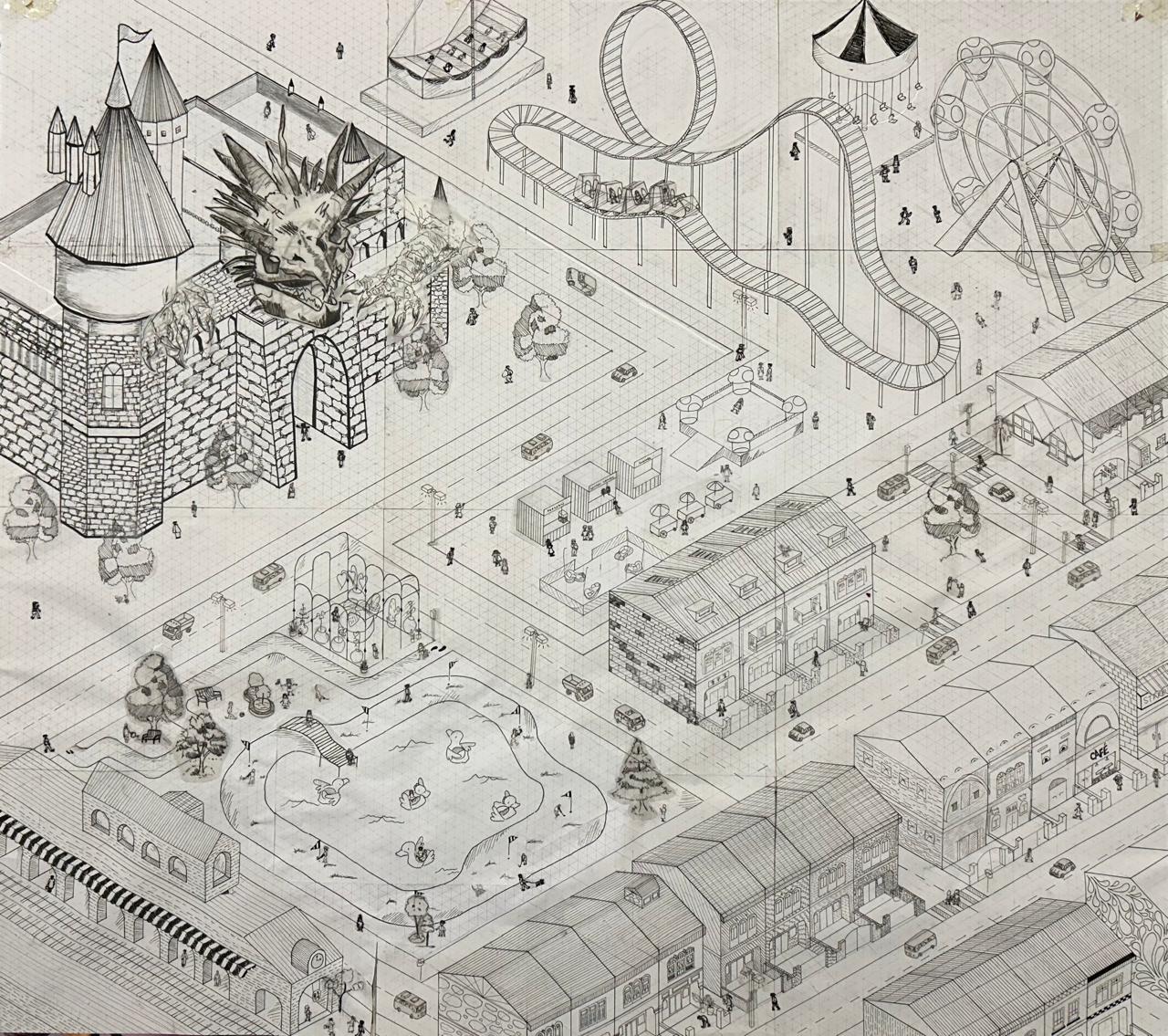
Collaboration City Drawing
The goal of this group project was to create a city that included parts of a park, a Harry Potter-inspired region, a Super Mario-themed amusement park, and traditional shophouses. Because these components were so different from each other, it was hard to put them all together into a single city plan. The hardest part of the project was figuring out how to split each space such that they all flowed together while still keeping their own unique characteristics. This project also taught us how line weight can guide the viewer's sight and change how deep the artwork looks, making the composition more interesting and visually appealing.
Panorama (Week 4-8)
Collaboration City Drawing
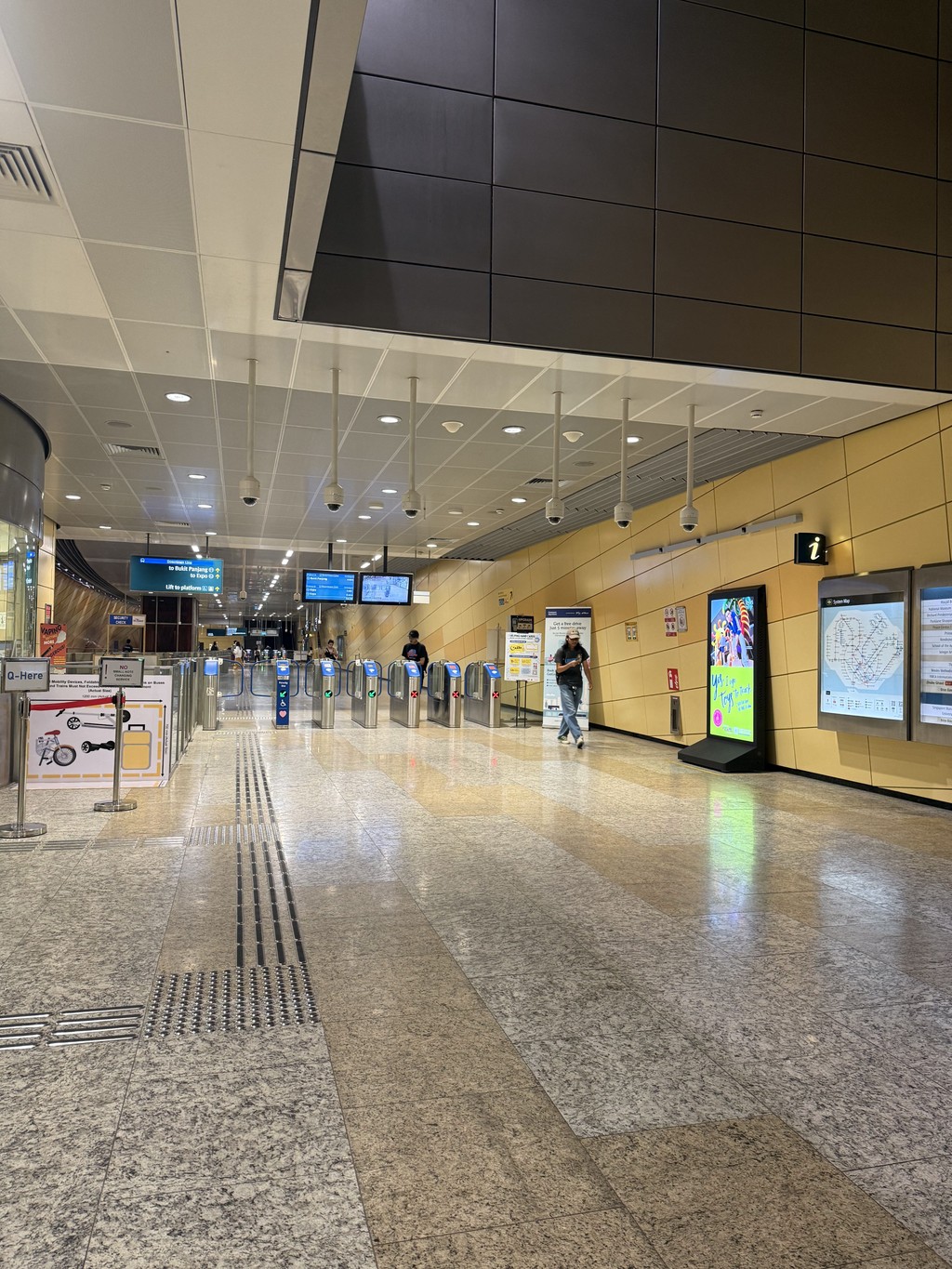
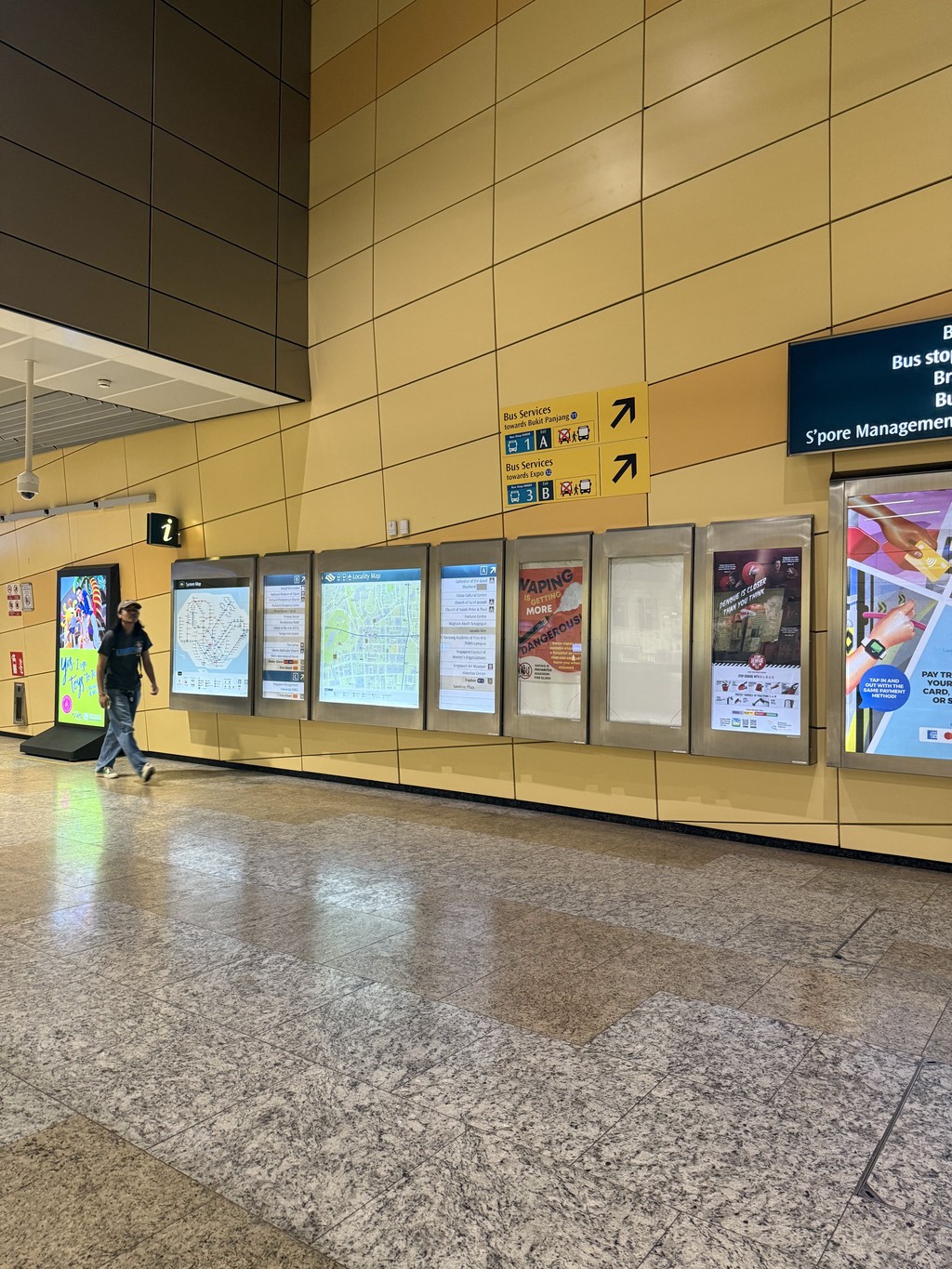
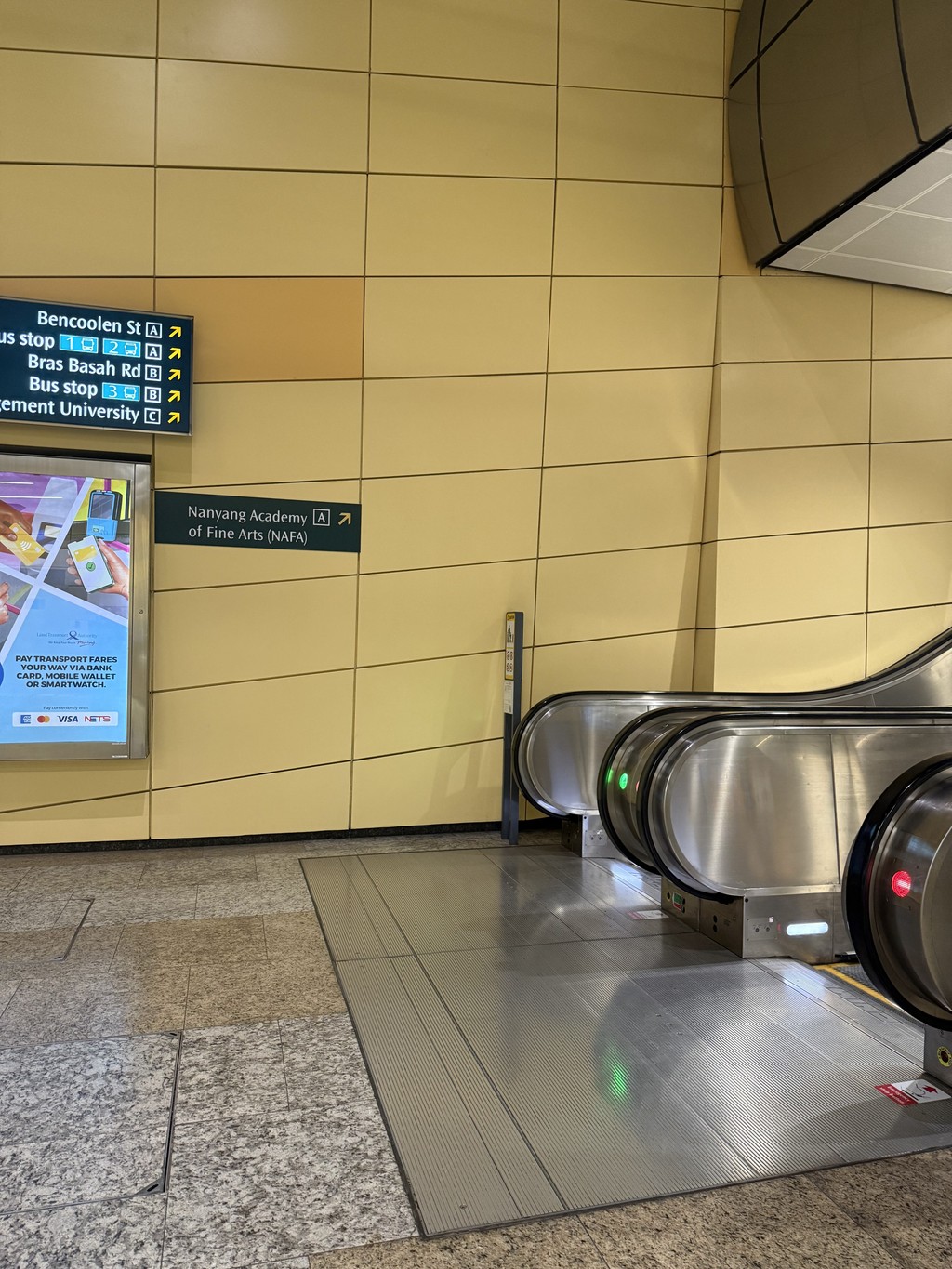
For this exercise, we took 6-8 photos of 2 different spaces and then created a panorama using Adobe Lightroom Classic. Once opening Lightroom Classic, I imported the photos that I took to and then selected all. From there, I went to Photos-Photo Merge-Panorama. Once selected, I selected the cylindrical project and adjusted the boundary wrap to 100.

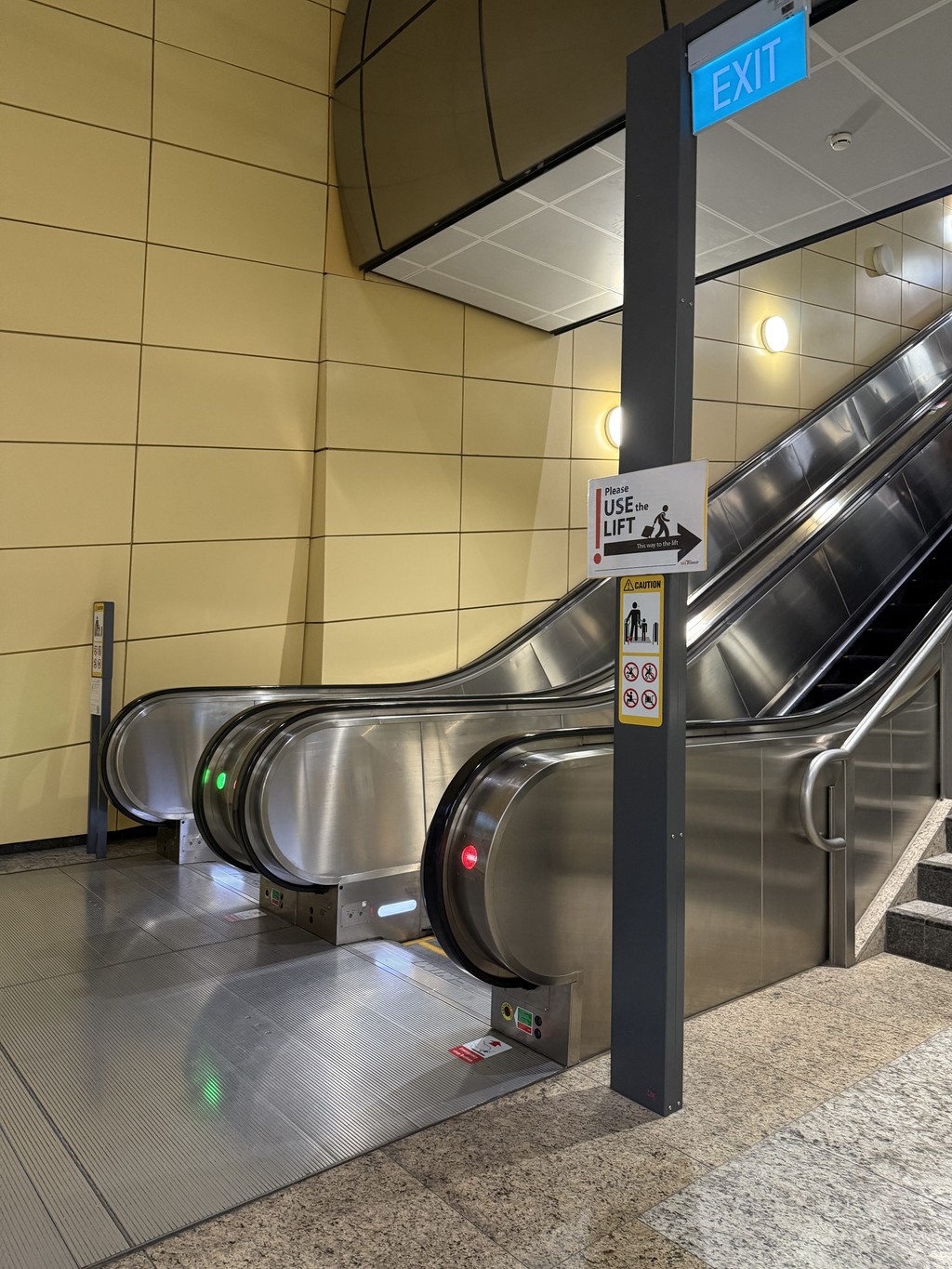
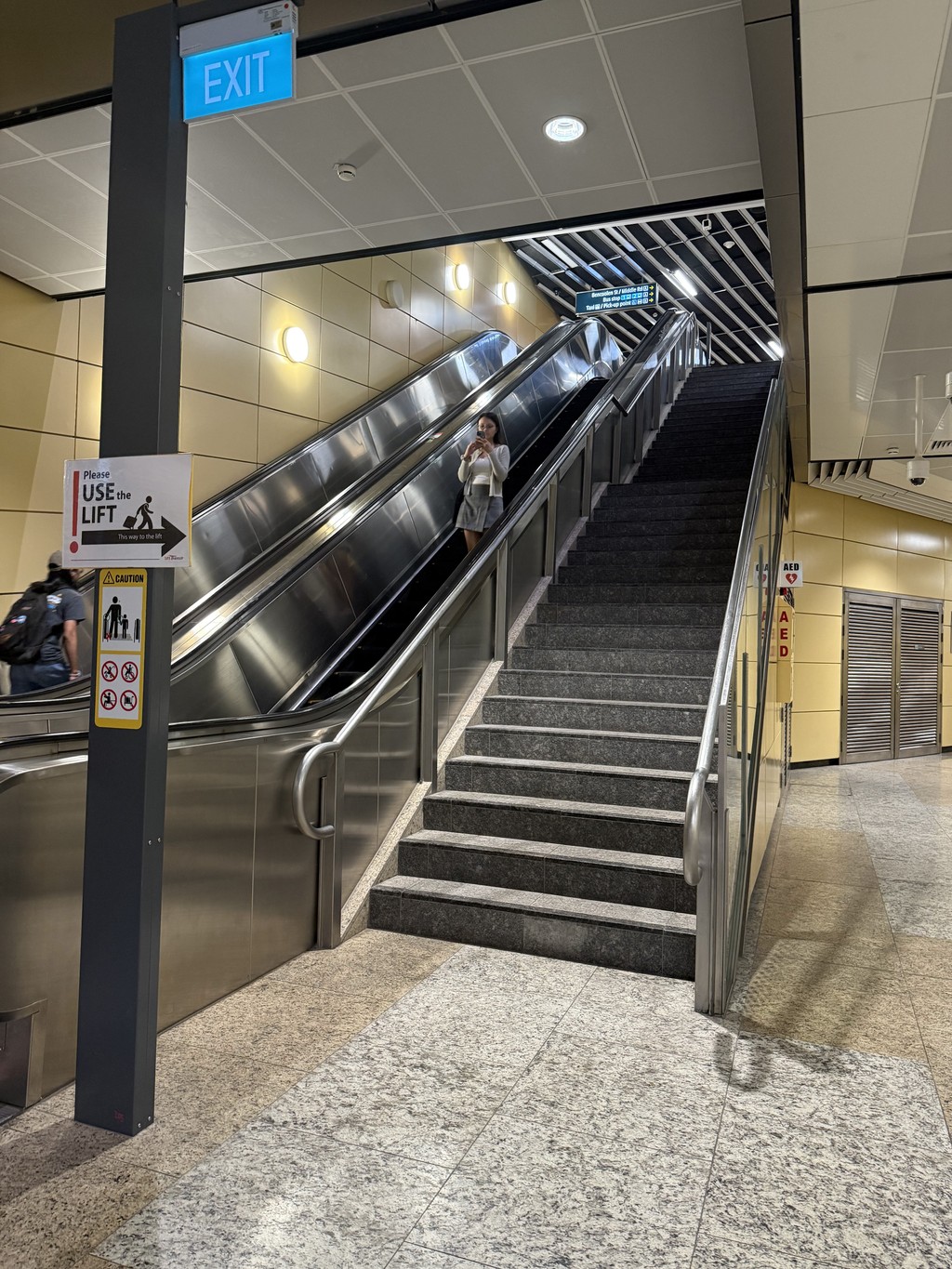
Photos taken on phone
Set 1 of photos
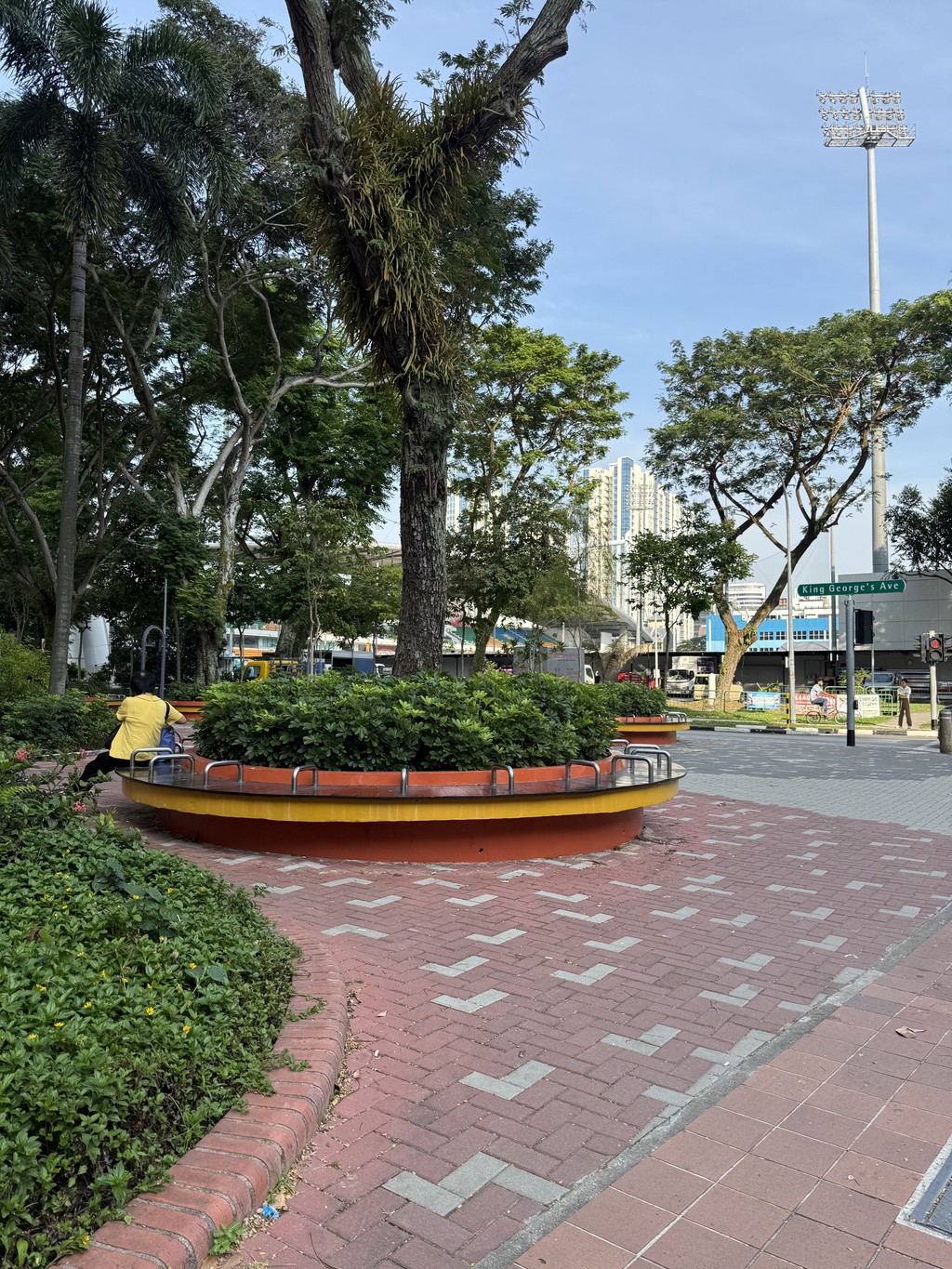

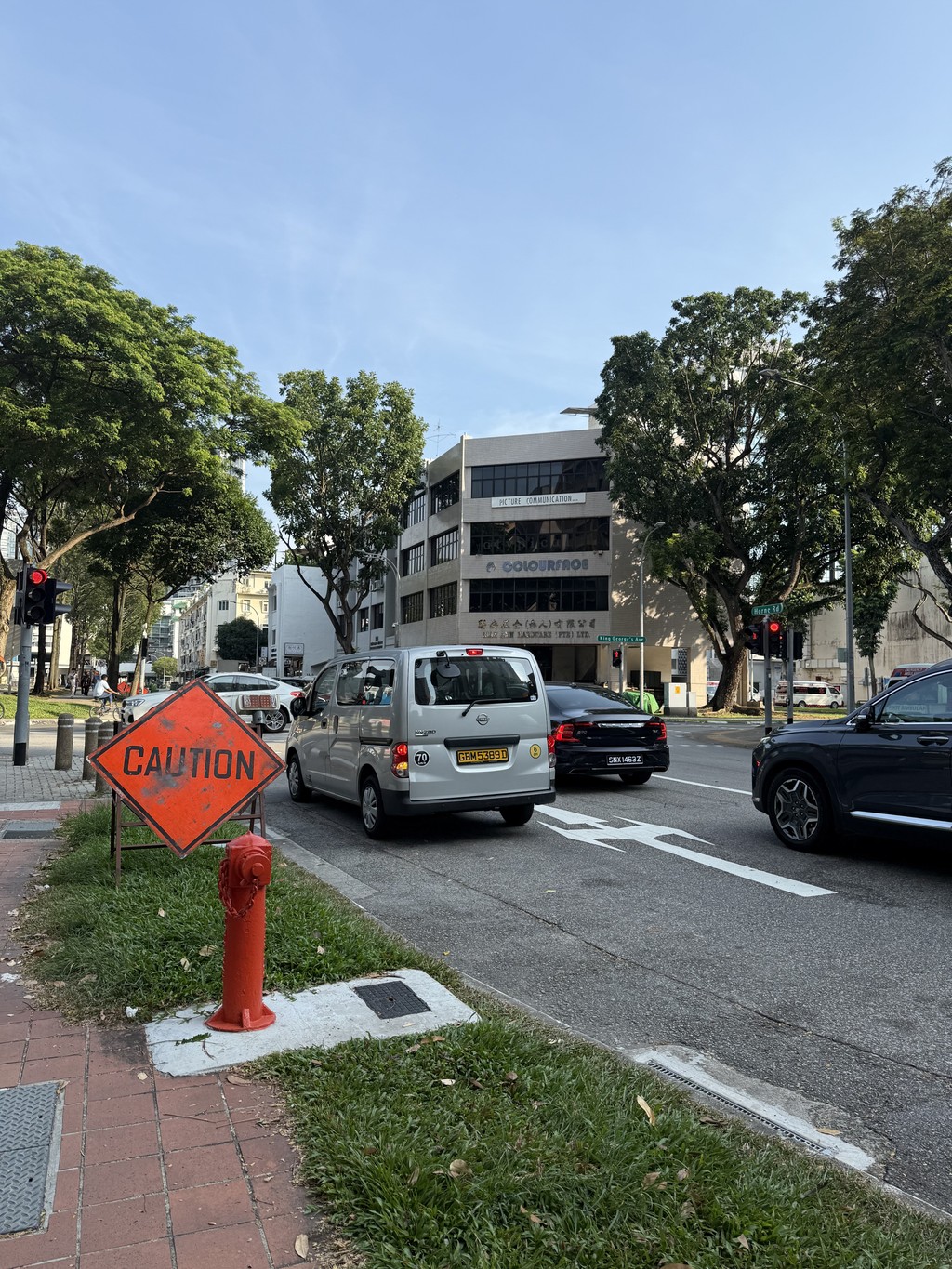

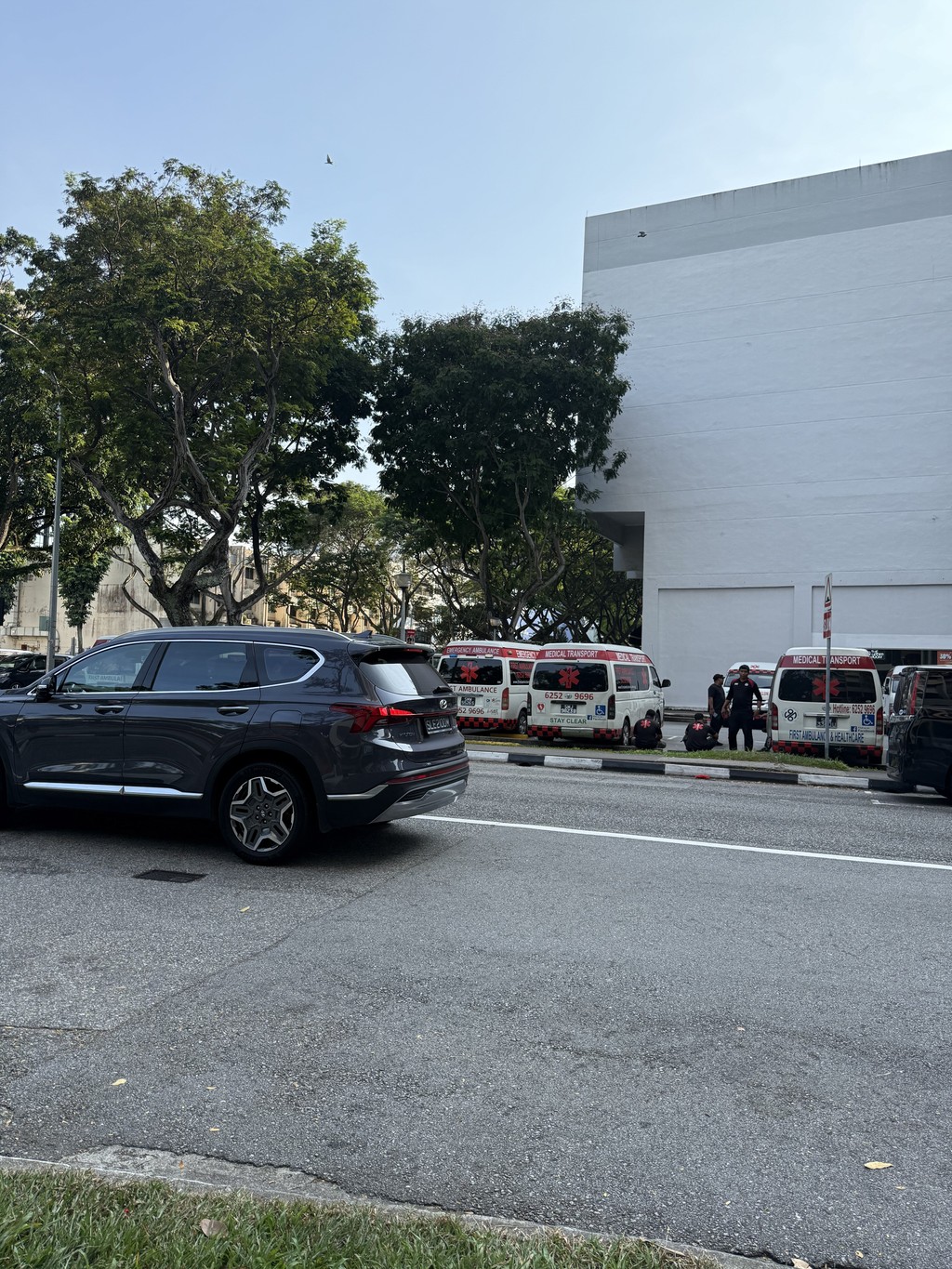
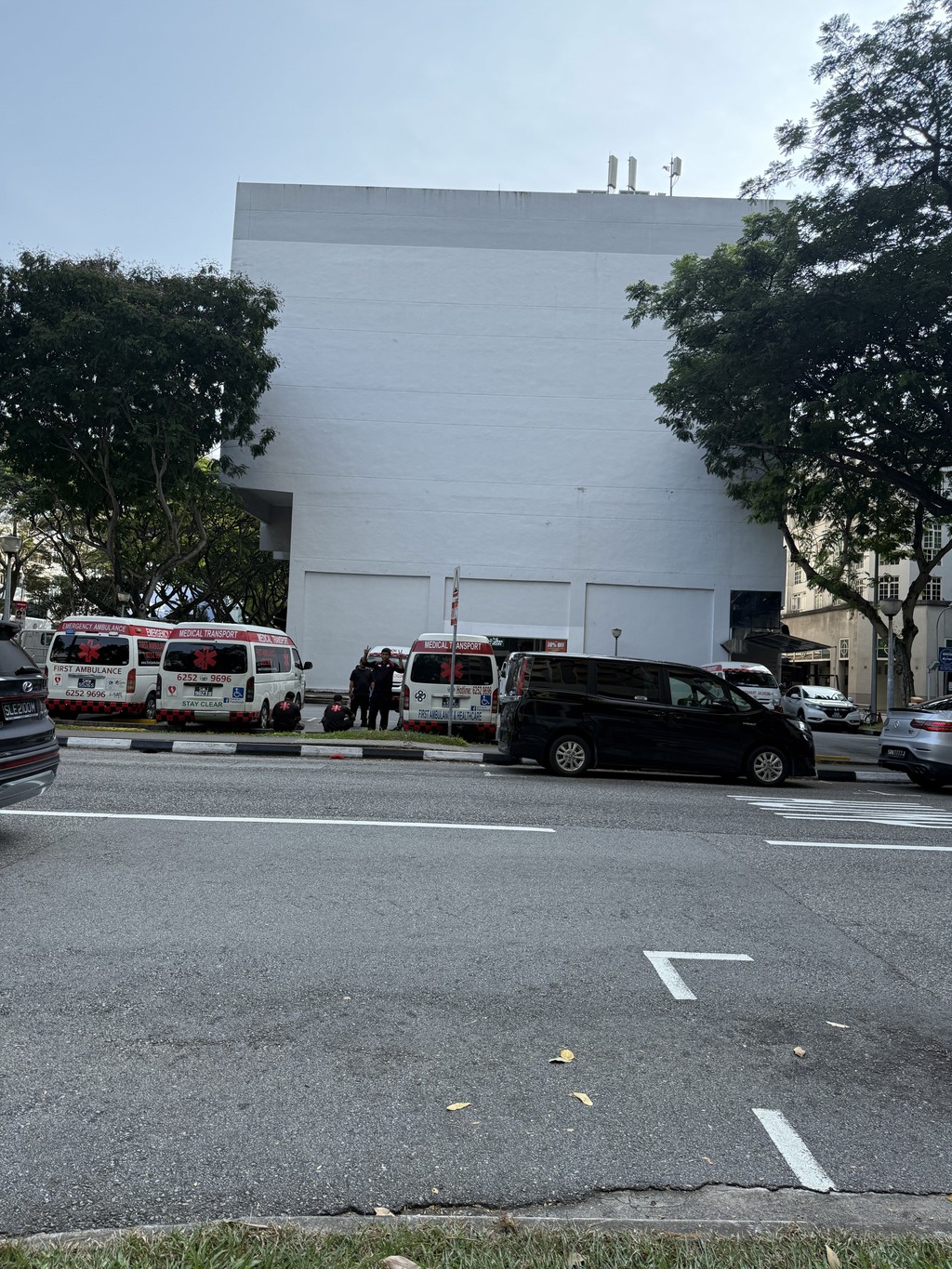
Photos taken on phone
Set 2 of photos

Lightroom Classic
Photo-Photo Merge-Panorama
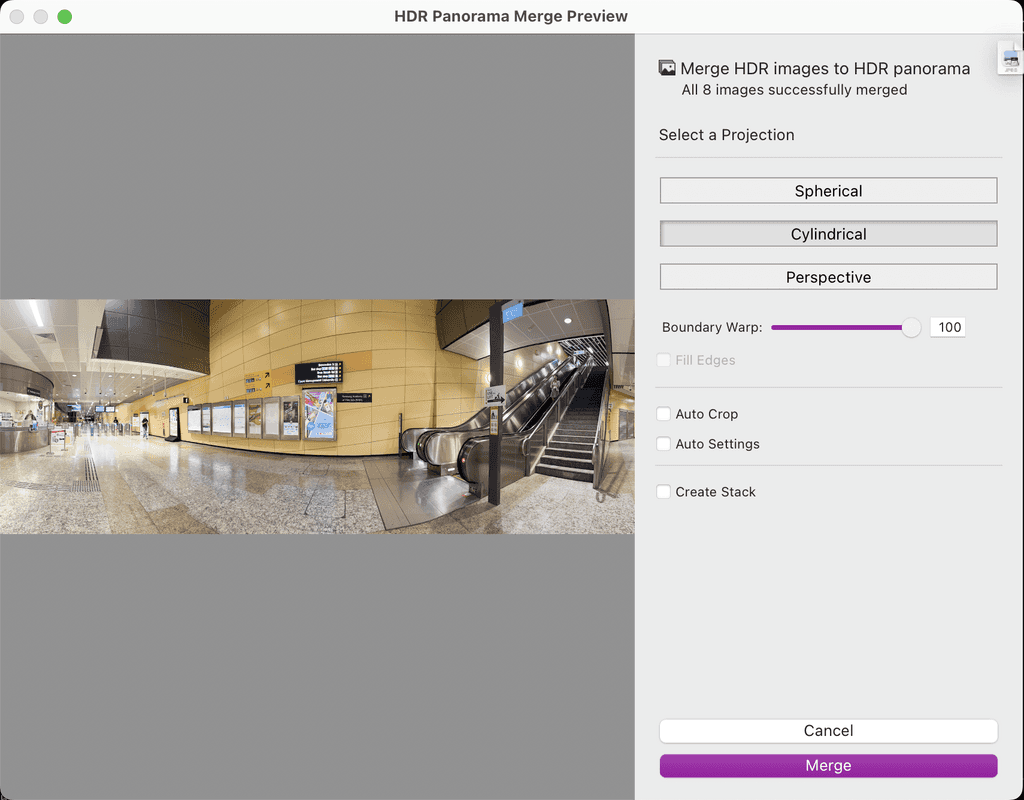
Lightroom Classic
Cylindrical Projection with Boundary Wrap at 100
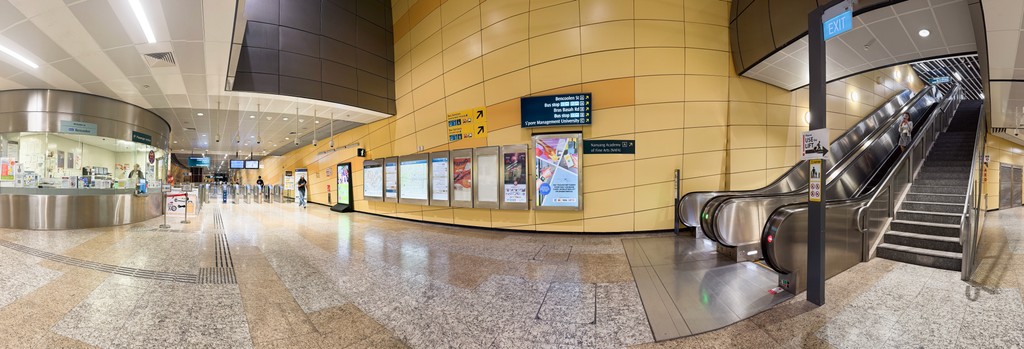
Lightroom Classic
Panorama 1

Lightroom Classic
Panorama 2
After downloading the panorama, I imported it into Adobe Photoshop. I carefully added colour to the areas I wanted to highlight after converting the image to black and white. I retained the yellow wall in Pano 1 and the green grass in Pano 2 to emphasise those important details.
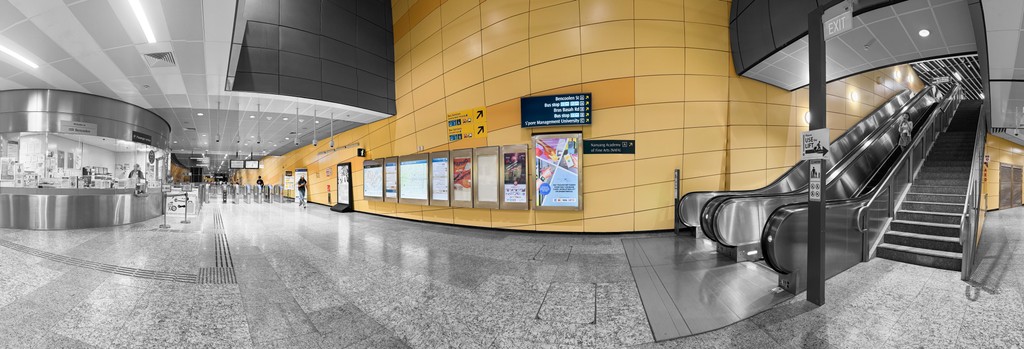
Adobe Photoshop
Panorama 1
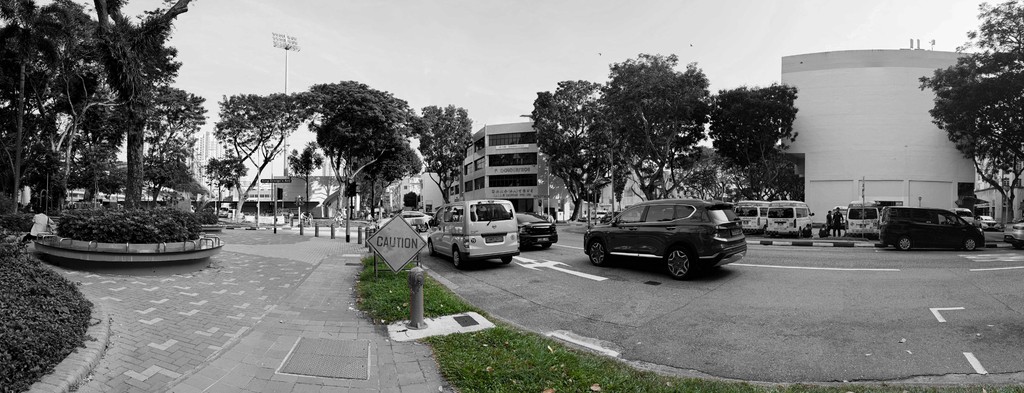
Adobe Photoshop
Panorama 2
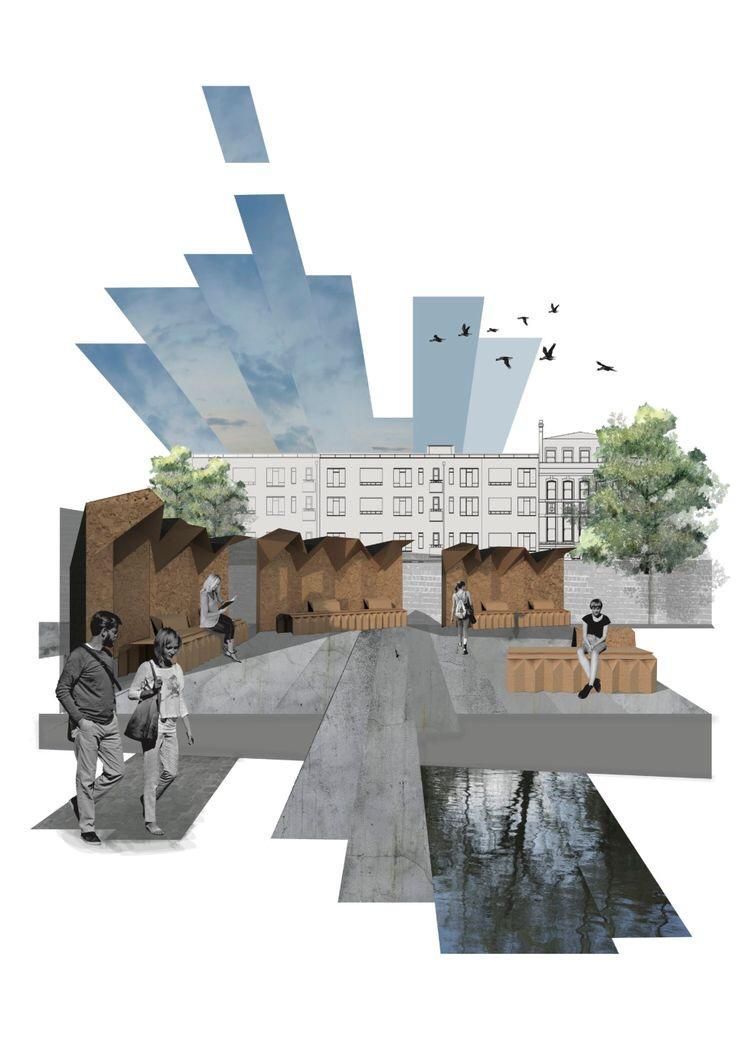
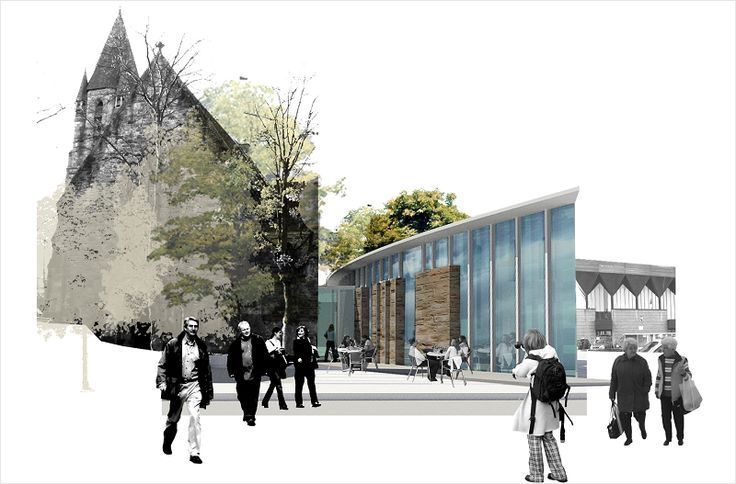
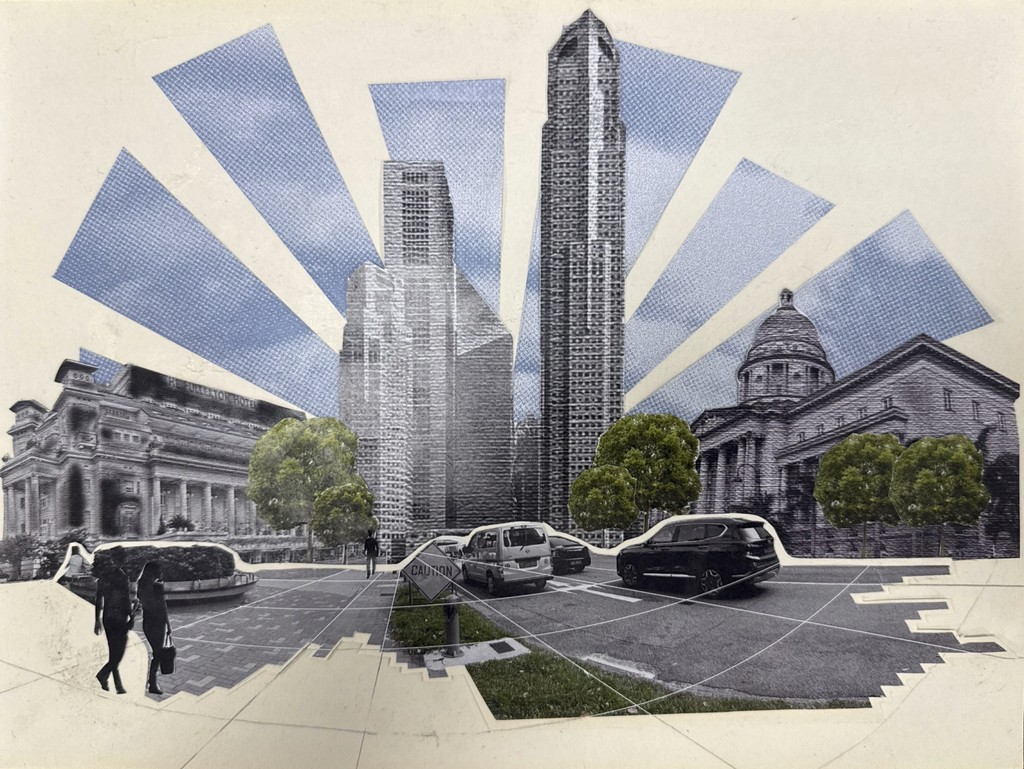
After that, we began looking into the possibility of creating architectural collages using a variety of media from these panoramas. In order to help us understand their composition and visual language, we examined and consulted collages that inspired us. I was greatly inspired by the use of geometric cut-out forms and the contrast between vibrant colours and black-and-white images, which gave the final collage depth and visual interest.

After importing my panoramas into Adobe Illustrator, I cropped each image to highlight its essential components. In Pano 1, I focused on the MRT flooring and the escalator, while in Pano 2, I emphasised the road and walkway. Once these key elements were separated, I highlighted the depth and perspective of each panorama by using white lines to identify and highlight its vanishing points.
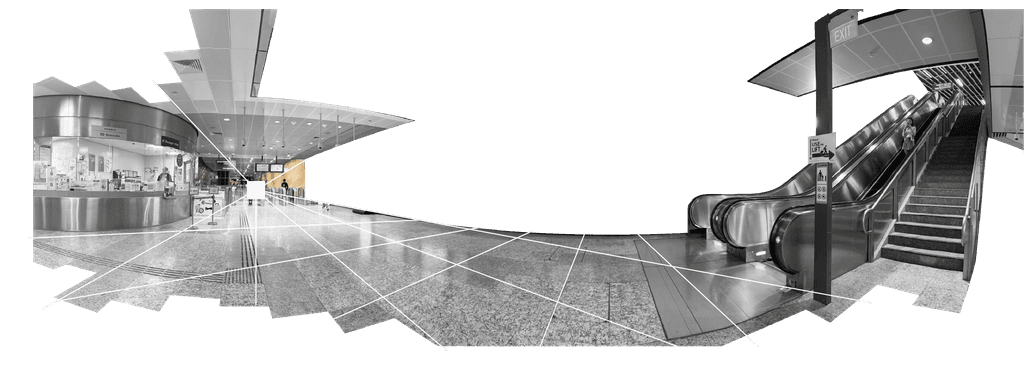
Adobe Illustrator
Panorama 1
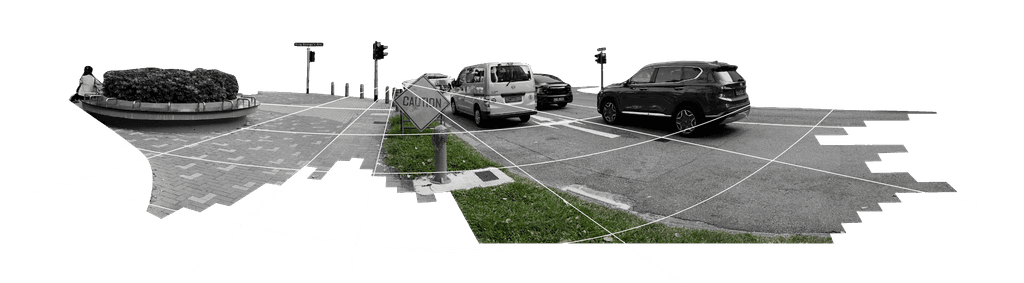
Adobe Illustrator
Panorama 2
I then imported the panoramas into Adobe Photoshop and began editing and superimposing images to make the collage. I want to make Pano 1 feel more expansive by adding a bridge and an open field. I incorporated well-known Singaporean locations, such as the OCBC Building, Fullerton Hotel, and National Museum, to improve the composition for Pano 2. After importing and arranging the images, I added additional layers and effects to give them more visual depth. I printed and assembled each component by hand, physically layering them to give the collage a more tactile and three-dimensional look.
I wanted to use different materials because I had only worked digitally with Photoshop and Illustrator. I printed out the collage components and assembled them by hand with glue to add depth and texture. To draw attention to the vanishing points in the images, I cut out the backdrop lines to create areas of negative space. The hardest part of this exercise was learning how to use Photoshop effectively and experimenting with its many effects to create unique visual styles. I found that YouTube lessons were especially helpful for developing my digital editing skills and learning new techniques.
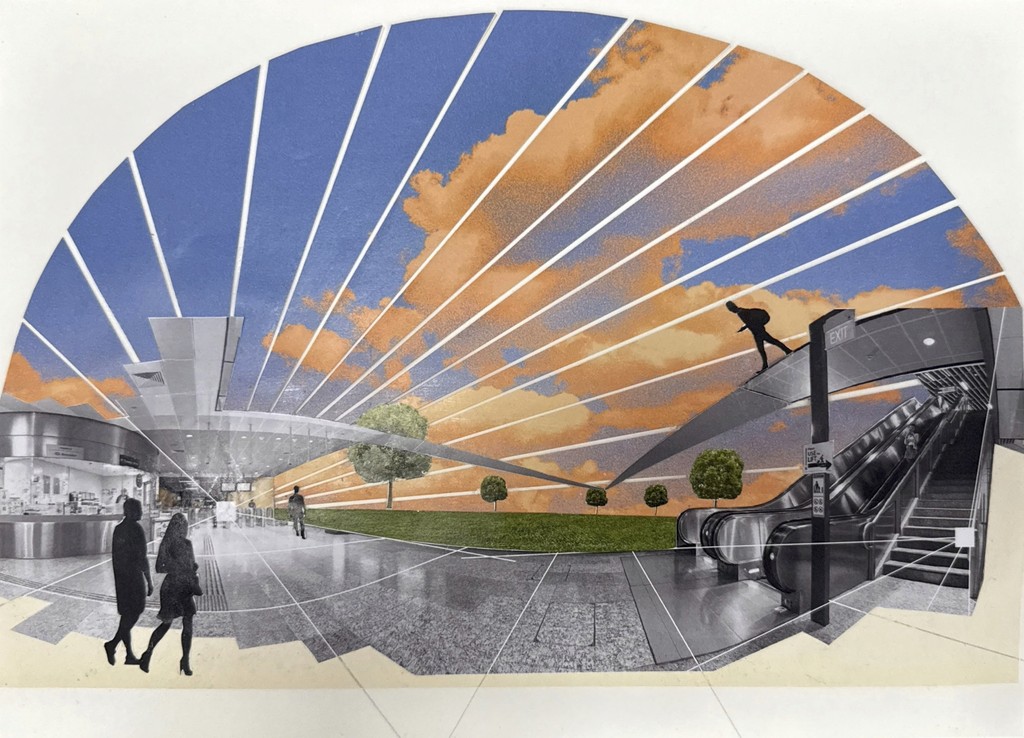
Mix Media Collage
Panorama 1
Mix Media Collage
Panorama 2
Bedroom Design (Week 9-12)
Bedroom Floor Plan
For this exercise, we had to make a plan model of our bedroom design, so I took photos and measured the walls and the furniture to understand the dimensions of the room layout.

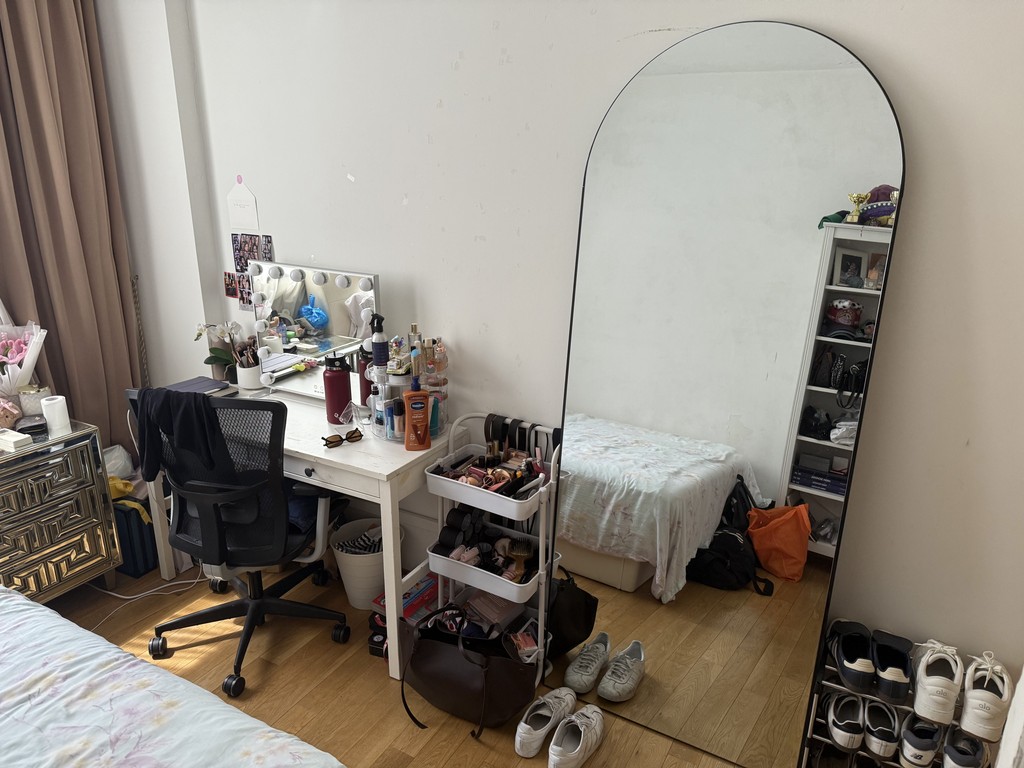
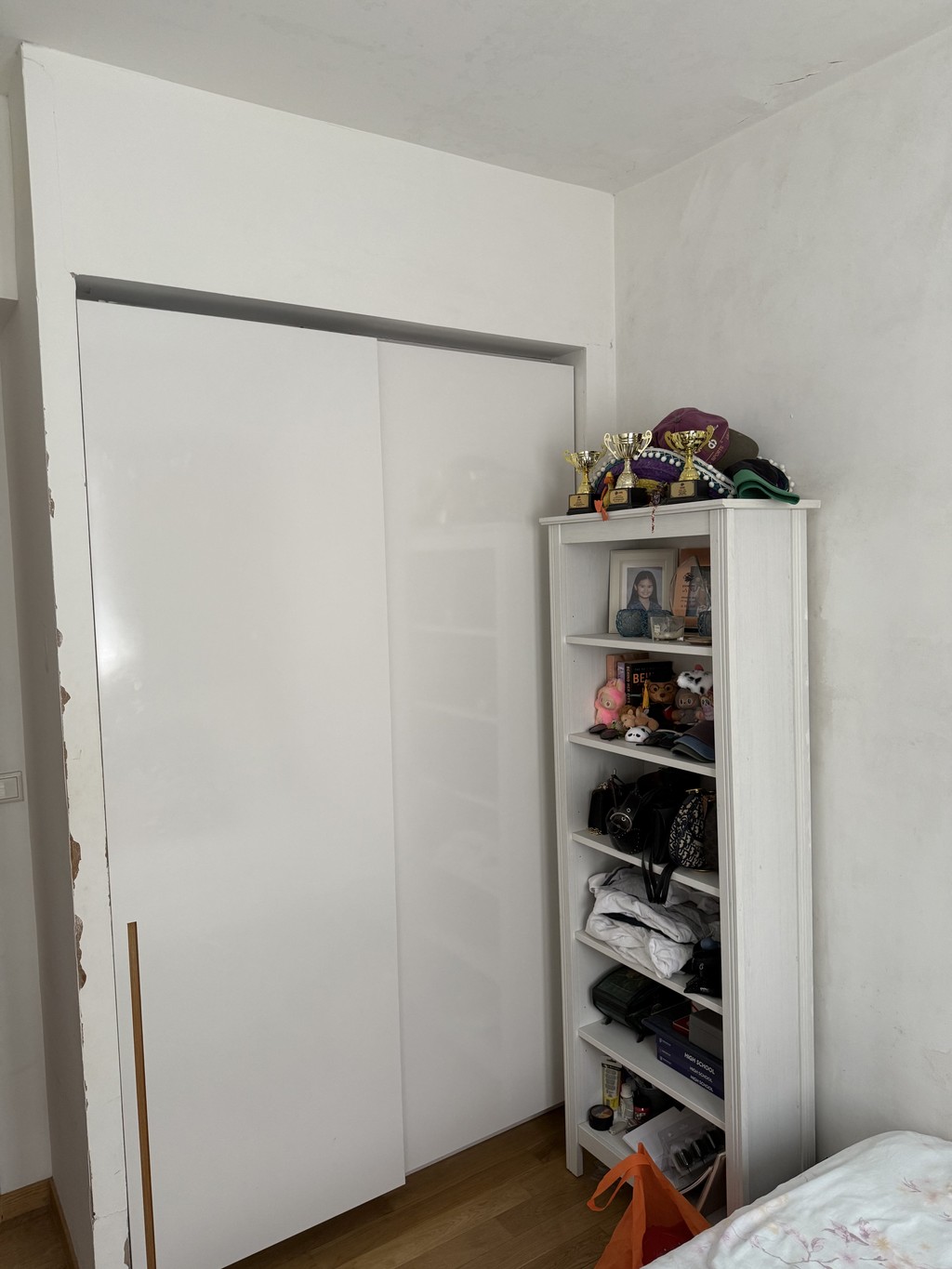

To add depth and dimension to the floor plan, I adjusted the line weights in AutoCAD. I used thicker lines for the walls and furniture borders and thinner lines for finer details to create visual hierarchy. In order to add shadows and enhance the drawing's realism and depth, I loaded the completed image into Adobe Photoshop. In order to seamlessly merge the AutoCAD version with an AI-generated image of the floor layout, I then played around with blending settings, colours, and layer effects. I ultimately imported the composition into Adobe Illustrator to add the precise measurements and finish the floor plan presentation.
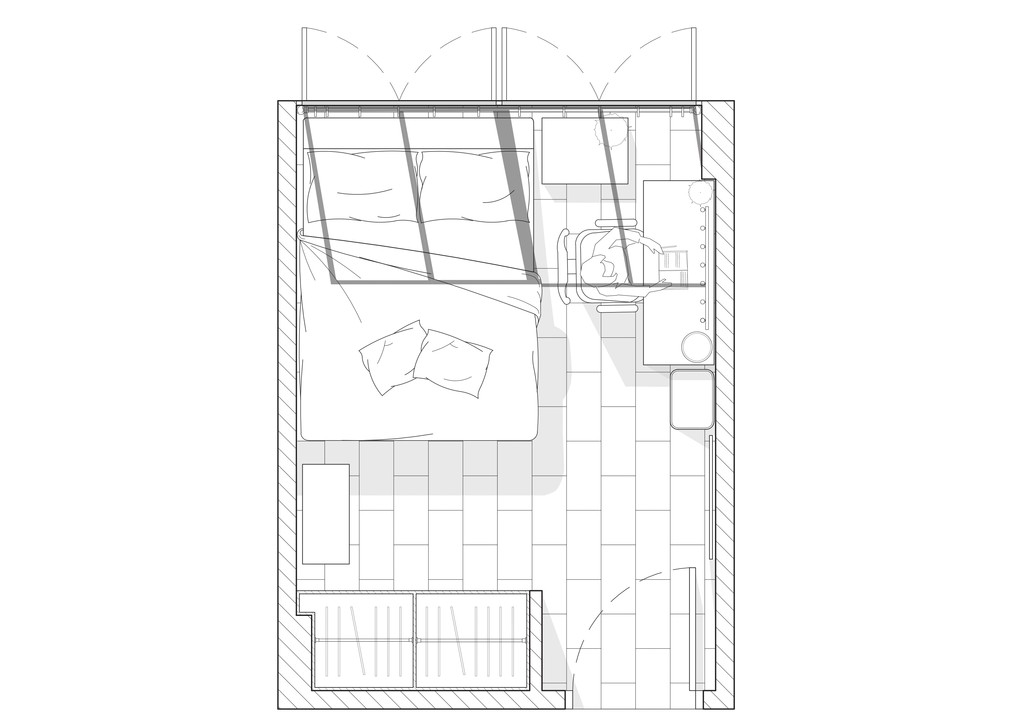
AutoCAD & Photoshop
Bedroom Plan with shadowing
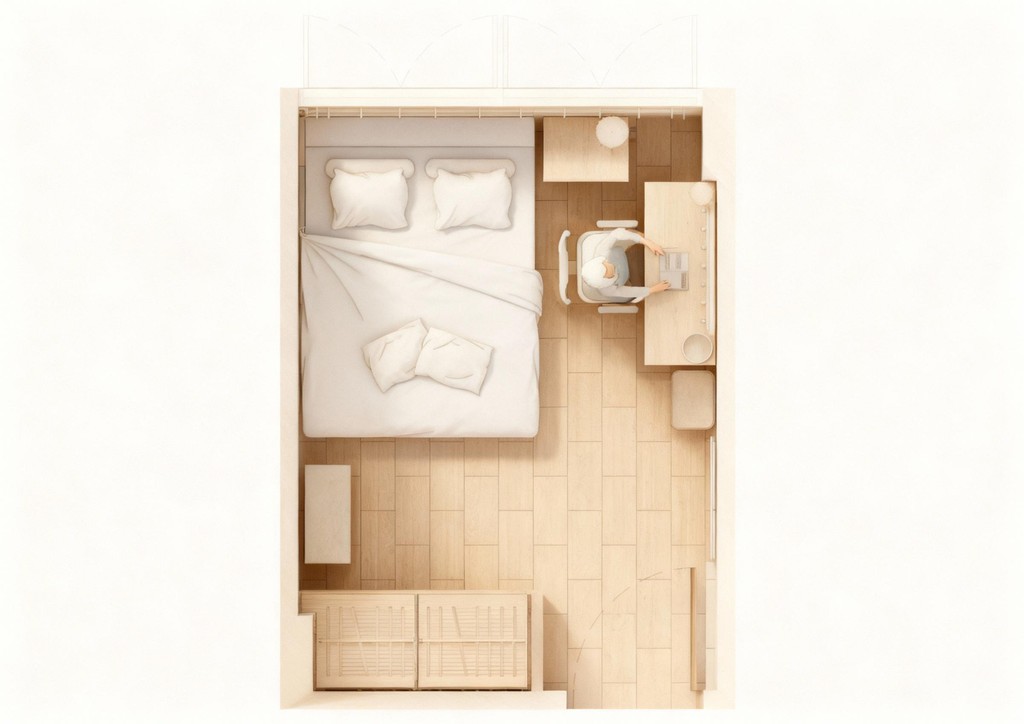
Ai Generated Layout
Ai generated photo from the Photoshop layout
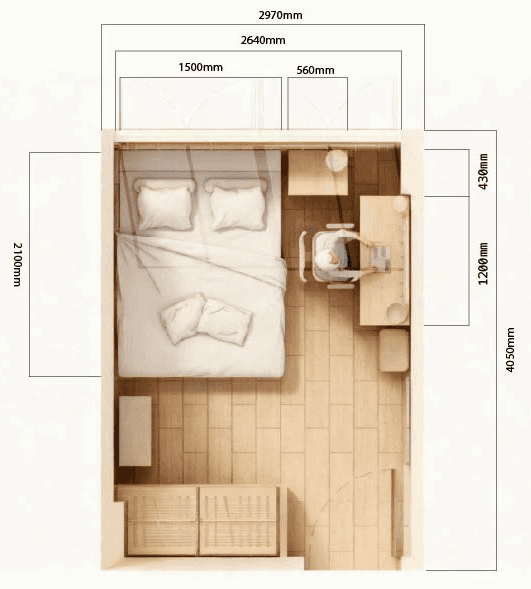
Adobe Illustrator
Bedroom Plan Layout